Tasks and checklists
What a task holds, how a change is reviewed before it is saved, and checklists that close by a tick or a document.
Open a task from the Work tab and choose Edit task. The sheet groups what a task holds:
- The work: the Task and its Kind of work.
- Where it sits: its Stage and, if it has one, its Deliverable.
- Who does it: the Assignee, a person or a team on the project.
- How big, and when: Planned effort (hours), Start and End, and later Hours left.
Review, then apply
Review change shows what the change does to the plan before anything is saved. Apply change saves it. Remove task deletes the task.
Once a project has its baseline, a change beyond the plan’s change rules goes to a planner to accept, unless you can write in Plan Studio.
Checklist
Once the task exists, its Checklist takes lines. Type in Add a line…, choose how the line closes, then choose Add:
- Closes with a tick: ticking it closes it.
- Closes with a document: Add the document closes it, and removing its last file opens it again.
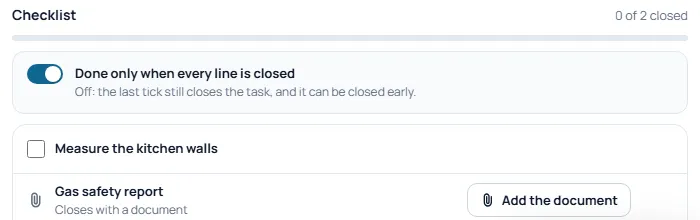
When every line is closed, the task finishes by itself. With Done only when every line is closed switched on, the task cannot be marked done while a line is open. Switched off, the last tick still finishes the task, and it can be finished early.
The checklist saves as you go; it does not wait for Review change.
Files on a task
Files on this task › Attach a file keeps any file with the task. Every file also shows in the project’s Documents.