Documents and permits
Every permit, document and task file of a project in one table, with reminders before anything runs out.
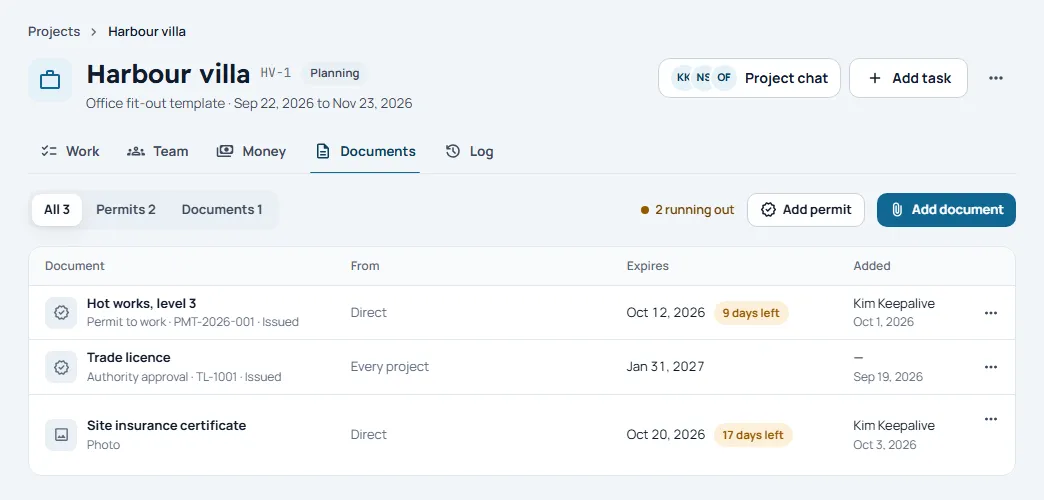
A project keeps its permits, its documents and every file attached to its tasks in one table: its Documents tab. Each row says where it came from, and anything with an end date is watched for you.
Add a document
- Open the project, then its Documents tab.
- Choose Add document, then drop a file or Choose a file: a PDF, a photo or a drawing.
- Give it a Name and, if it runs out, the date it Expires on.
- Choose Add document. It is in the table, its From column saying Direct.
Only documents added in this tab can be changed or removed here. A file on a task or a deliverable is managed where it was attached.
Add a permit
Choose Add permit and fill in its Kind (Permit to work or Authority approval), its Permit number, What it covers, Where it stands, who Issued by, and the dates it is Valid from and Valid to. Tick Applies to every project for a permit the whole firm works under. Open a permit later to add its evidence: the PDF or a photo.
End dates and reminders
When a document or permit has an end date, the project’s Leads (the people with the Lead role on its Team tab) are told twice, in the app and by email: when 30 days are left, and again once the date has passed. The row says how many days are left. Moving the date starts the reminders again; without a date, nothing is watched.
Where a file came from
The From column says it:
- Direct: added in this tab.
- Every project: a permit the whole firm works under.
- Deliverable: evidence for a deliverable.
- A task’s number and name: a file on that task, or one that closed a line of its checklist.
Filter the table to All, Permits or Documents.